
HMI Overview
The HMI (Human-Machine Interface) Interface is a pivotal component in the operation of the BioDryer, offering a comprehensive and user-friendly platform for controlling and monitoring the entire drying process. This web-based interface brings a high level of flexibility and accessibility to the operation of the BioDryer, as it can be accessed from the main SCADA (Supervisory Control and Data Acquisition) computer or via a tablet. This versatility allows operators to manage the BioDryer not just from a fixed location, but also while moving around the facility, ensuring continuous supervision and control.
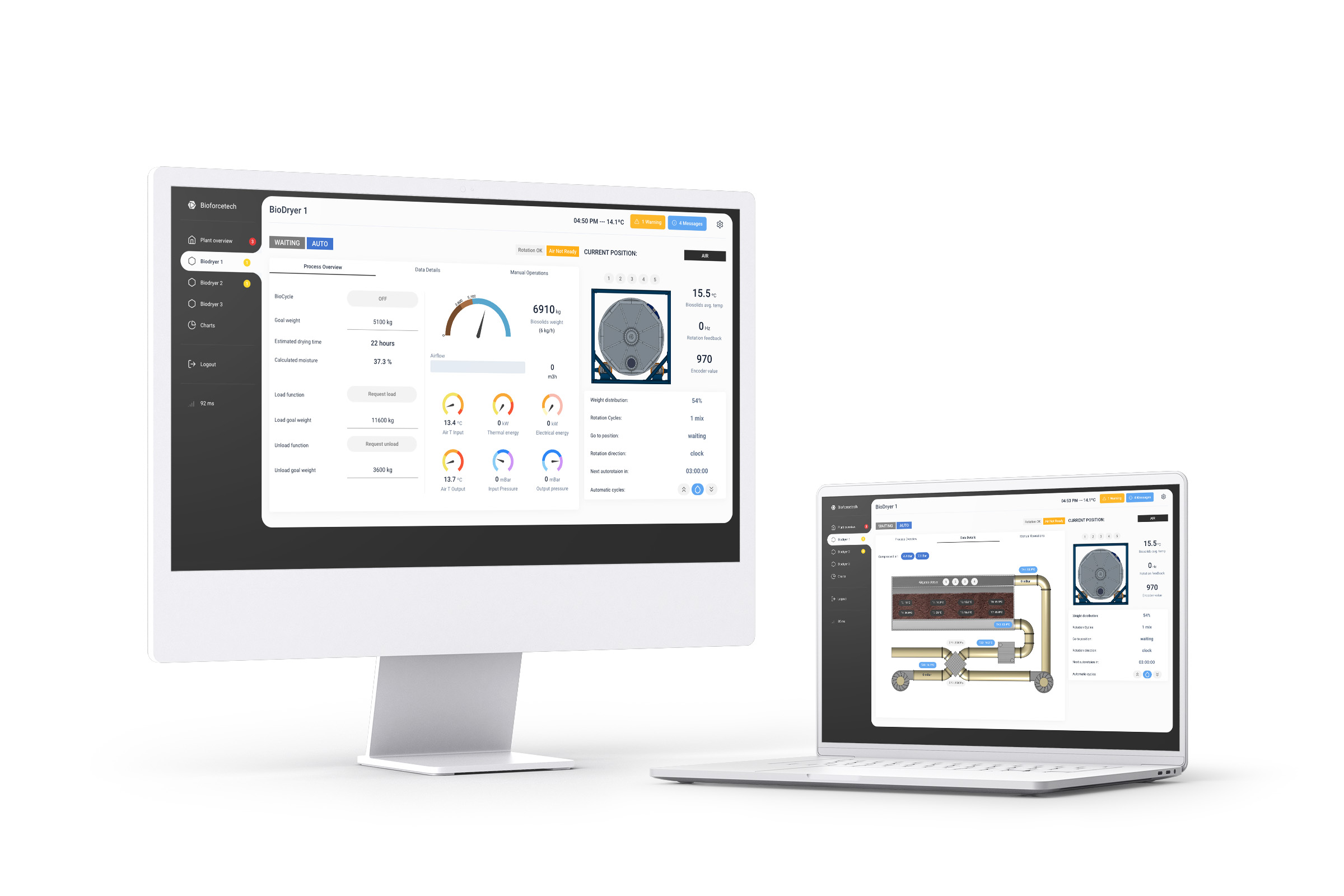
Key Features of the HMI Interface
- Remote Access: The web-based nature of the HMI Interface means that it can be accessed from any device with a web browser, offering the convenience of remote monitoring and control.
- Process Settings: All settings related to the drying process can be adjusted through the HMI Interface. This includes parameters like temperature, drying duration, and material feed rates.
- Manual Operations: For situations that require specific adjustments or immediate intervention, the HMI Interface allows operators to manually control various aspects of the BioDryer.
- Automatic Operations: The interface also facilitates the setup and monitoring of automatic operations, ensuring the BioDryer runs efficiently with minimal need for manual intervention.
- Real-Time Visualization: Operators can view real-time data and process statuses, making it easier to make informed decisions and adjustments on the fly.
- Ease of Use: Designed with user experience in mind, the interface is intuitive and easy to navigate, even for those with limited technical experience.
In this section, we will delve into the specifics of navigating and utilizing the HMI Interface, ensuring that you are well-equipped to manage the BioDryer effectively, whether you are at the control center or on the move within the facility. Understanding how to leverage the capabilities of the HMI Interface is key to optimizing the performance of the BioDryer and maintaining a high standard of operational efficiency and safety.
HMI Components Overview
This section offers a concise overview of the Human-Machine Interface (HMI) components of our application. You'll find screenshots and brief descriptions of the webpage's key elements, designed to enhance your navigation experience.
We've highlighted essential features and functionalities to help both new and existing users familiarize themselves quickly with our system. These visual guides aim to make your interaction with the interface intuitive and efficient. Let's dive into the world of HMI components for a smoother user journey.
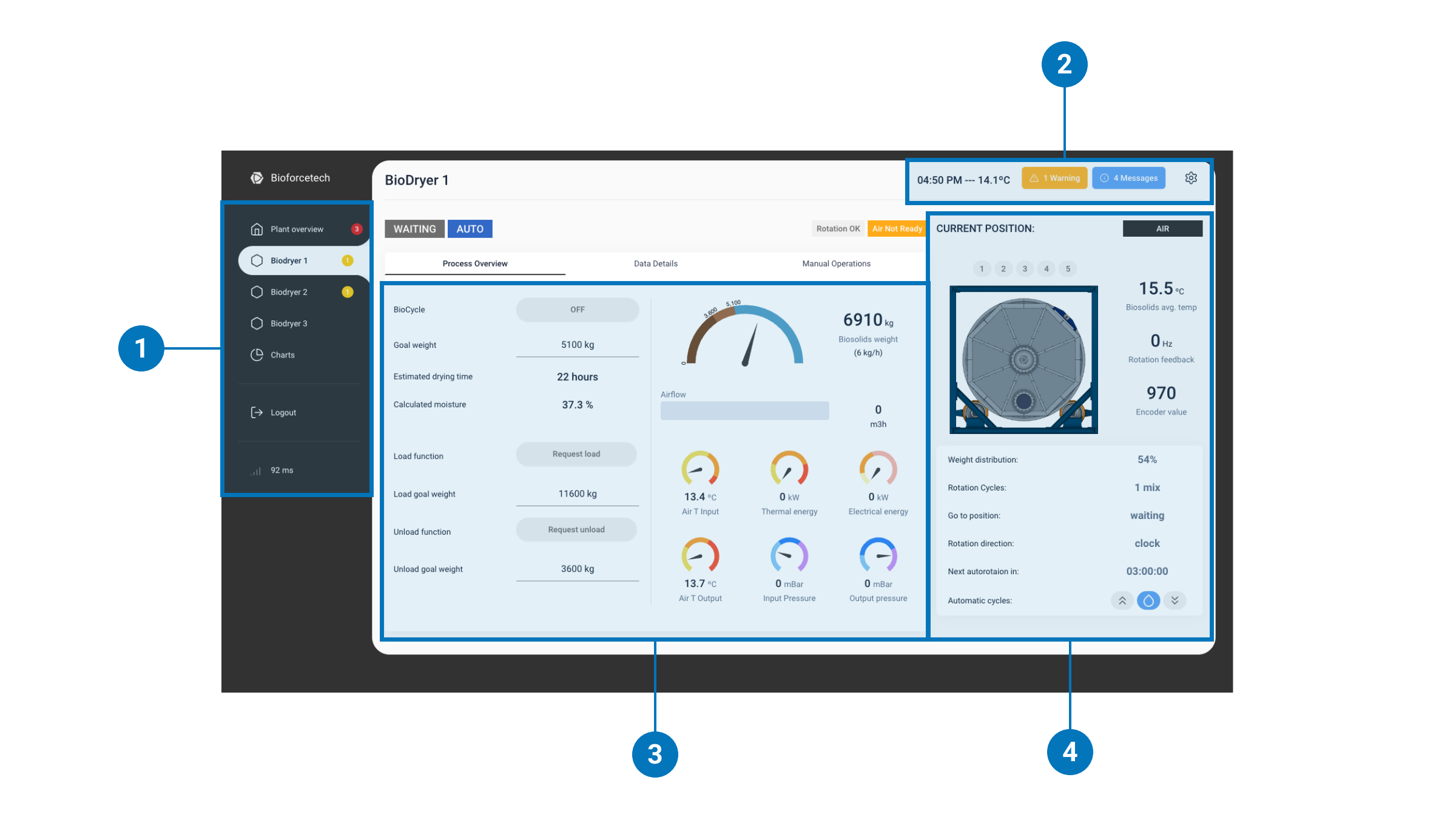
- Equipment menu: In the HMI interface, the left menu serves as a gateway to the different functionalities of the plant's equipment. From this menu, operators can select various components such as 'BioDryer 1', 'BioDryer 2', or gain a comprehensive 'Plant Overview' to monitor and manage the equipment's settings and operations. Additionally, this side panel provides quick access to the 'Charts' feature for in-depth data analysis and the 'Logout' button, which is critical for maintaining security by ensuring that the interface is not left accessible to unauthorized personnel. At the bottom of this menu, there's a response time indicator, a valuable tool that displays the connection strength between your device and the control panel, ensuring you are always aware of the reliability of your interaction with the system. This sidebar is designed for intuitive navigation, allowing for seamless transitions between different monitoring and control functions within the HMI, and is fundamental for the effective operation of the BioDryer.
- Process Settings, Alarms, and Info messages: At the top right corner of the HMI interface, operators have access to a slide-out panel, which is a critical feature for detailed management of the BioDryer's operations. Within this panel, operators can input and adjust various settings such as the process temperature setpoint, timing for cleaning cycles, auto-load configurations, and other operational parameters that are essential for the BioDryer's efficiency and effectiveness. Alongside these settings, there are two important buttons: one that brings up a list of alarms, providing alerts on any immediate issues that need attention, and another that opens a list of informational messages, offering insights into the system's status and operation. This interactive top bar is designed to ensure that control and fine-tuning of the process parameters are at the operator's fingertips, streamlining the task of optimizing the BioDryer's performance.
- Data Overview and Manual Operations: At the heart of the HMI interface is the central section, where all the critical information regarding the BioDryer's sensor readings and operational status is displayed. This central dashboard is the hub for real-time data, allowing operators to monitor the conditions and performance of the BioDryer continuously. Within this space, there are three tabs that enable the operator to toggle between different views: 'Process Overview' for a high-level summary of current operations, 'Data Details' for in-depth analytics and sensor data, and 'Manual Operations' where manual control of the BioDryer can be executed. These tabs are instrumental in providing a comprehensive and accessible overview of the system's status, ensuring operators have all the necessary information to manage the BioDryer effectively.
- Crucial data: On the left side of the HMI interface, operators are presented with vital, constantly visible data regarding the BioDryer's operational status. This includes the current position of the BioDryer, the direction of rotation, and the status of the sludge gates. These pieces of information are fixed on the page and are designed to remain visible at all times, providing a steady stream of crucial data to the operator. This ensures that even when navigating through different tabs—whether checking process overviews, delving into data details, or managing manual operations—these essential parameters are always accessible, allowing for constant monitoring and quick decision-making. This layout feature of the HMI interface is intentional, facilitating an environment where situational awareness is maintained, enhancing the operator's ability to ensure the BioDryer's efficient and safe operation.
Fixed Elements
Fixed elements on the HMI interface are always visible to the operator, regardless of which tab is active. These elements provide constant updates and controls:
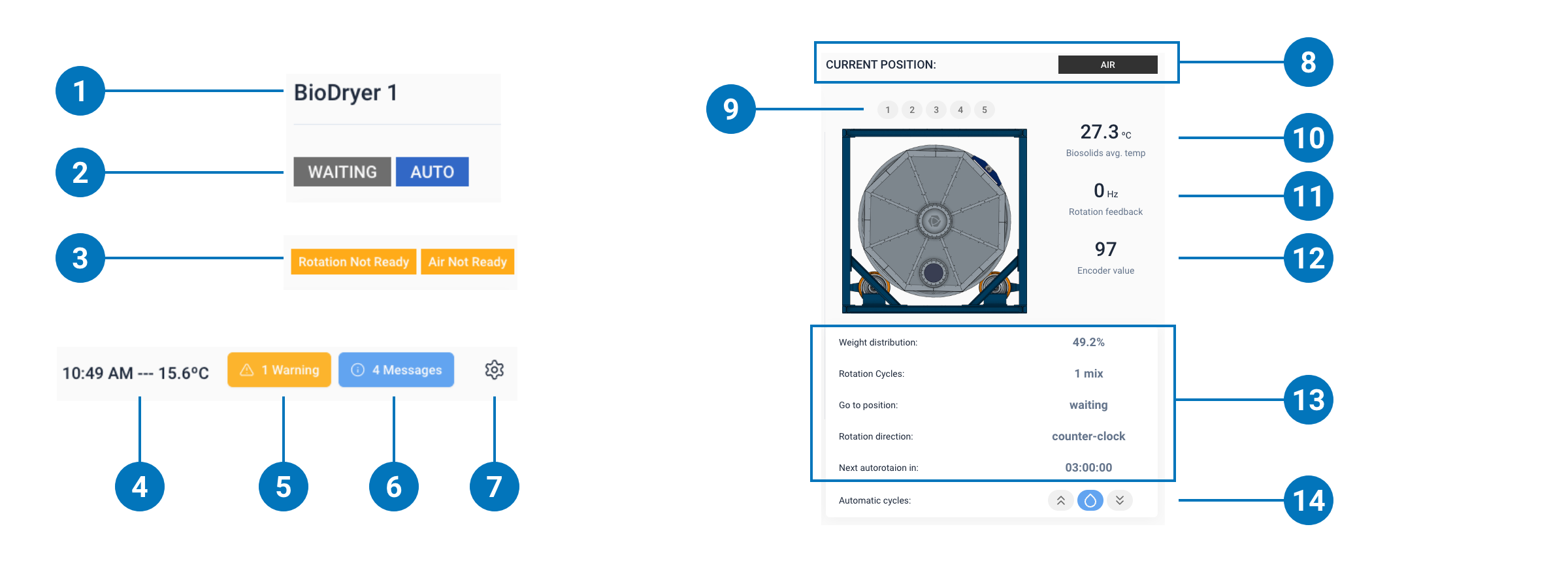
- Title: Displays the name of the machine currently being monitored.
- Status Labels: The first label indicates the BioDryer's status, such as ERROR, WAITING, BIOCYCLE ON, READY, UNLOADING, or LOADING. The second label shows whether the BioDryer is in AUTO MODE or MANUAL MODE, switchable only via the physical switch on the air skid junction box.
- Ready Status: An indicator for rotation and air system readiness; if "Rotation not ready" appears, check the info messages for an explanation.
- Time and Temperature: Shows the current time and ambient temperature where the BioDryer is located.
- Alarms and Warnings Button: Pressing this reveals a list of active alarms or warnings and an alarm history log.
- Info Messages: This button displays messages about the machine's status, providing insights into potential issues and troubleshooting steps.
- BioDryer Settings Toggle: A switch to access the BioDryer's settings.
- Current Position: Indicates the BioDryer's current position: ND (not defined), AIR, LOAD, or UNLOAD.
- Sludge Gates Status: Labels showing whether sludge gates are open (blue) or closed (gray).
- Internal Biosolids Temperature: The average temperature of the biosolids inside the BioDryer.
- Rotation Feedback: The rotational feedback data in Hz from the motors.
- Encoder Value: Ranging from 0 to 1000, indicating the BioDryer's precise position.
- Rotation Information: Details about the BioDryer's rotation system.
- Automatic Cycles: Labels that inform the operator whether automated cycles are active (blue for active, gray for inactive).
These fixed elements are integral for continuous monitoring and operation of the BioDryer, providing quick access to essential functions and information.
Process Overview Tab
The Process Overview tab of the HMI is the central hub for monitoring and operating the BioDryer. Below are the key components of this view:
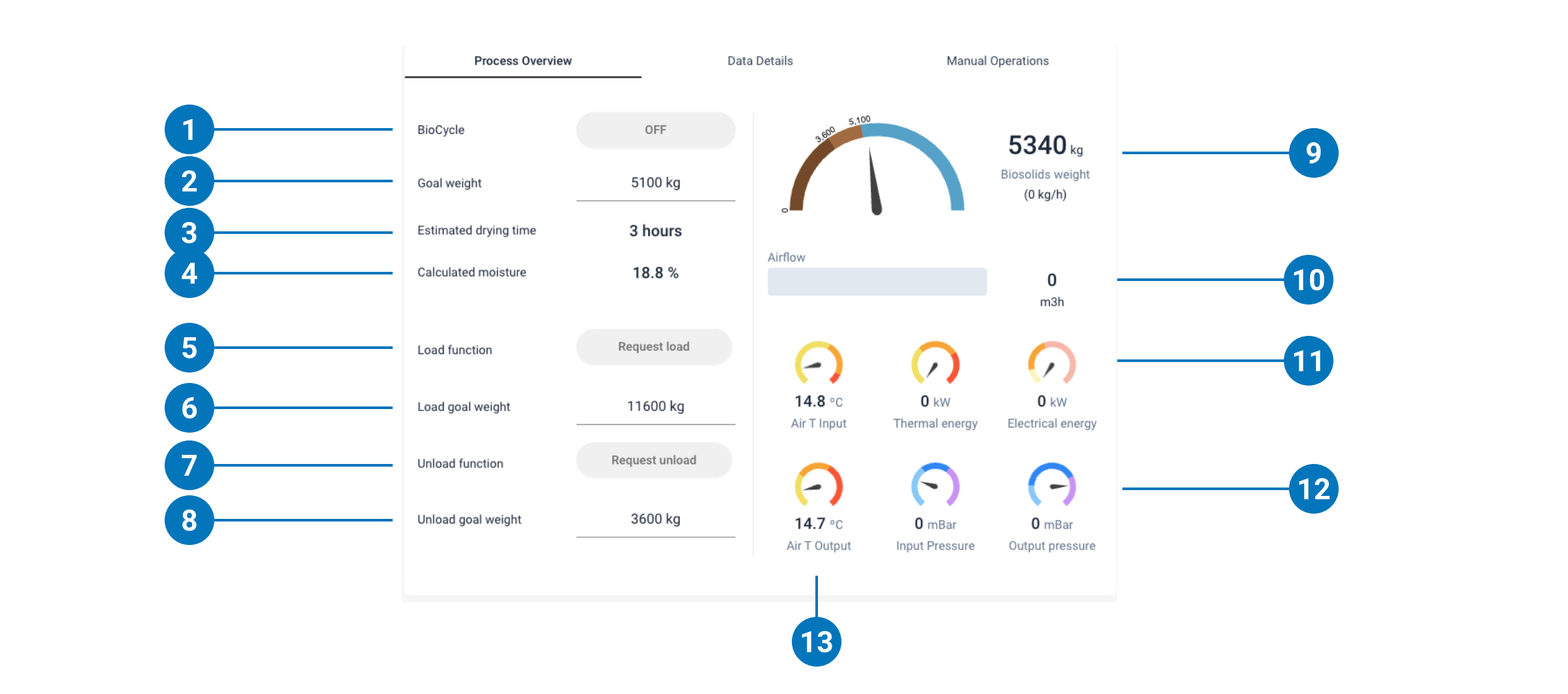
- BioCycle: Toggle this to start or stop the drying cycle.
- Goal Weight: Displays the target end weight for the drying cycle, typically auto-set by the system but can be manually adjusted.
- Estimated Drying Time: Provides an estimated countdown to the cycle's completion.
- Calculated Moisture: Shows the average moisture content of the biosolids in the BioDryer.
- Load Function: Activates the biosolids loading process and stays engaged during loading.
- Load Goal Weight: Indicates the target weight for loading biosolids and is usually consistent across cycles.
- Unload Function: Activates the unloading process.
- Unload Goal Weight: Sets the target weight for unloading, typically fixed for all cycles.
- Weight Gauge: Visual gauge of the current biosolids weight, with color zones representing various weights and a water loss rate indicator (kg/h) for process efficiency.
- Airflow: Shows the air flow rate into the BioDryer in m³/h.
- Electrical and Thermal Energy (kW and kWt): Live readings of electrical and thermal energy usage, with the optimal range shown by the needle's position in the orange zone.
- Input and Output Pressure: Gauges for inlet and outlet pressure, with the needle within the blue zone indicating optimal pressure.
- Air Input and Output Temperatures: Display the temperatures of the air entering and exiting, with optimal temperatures indicated by the needle in the orange zone.
Operators should regularly check these components to ensure the BioDryer's efficiency and effectiveness.
Data Details Tab
The Data Details tab provides comprehensive sensor data from the BioDryer, offering insights crucial for troubleshooting and understanding process behavior under various conditions. The following items are detailed on this page:
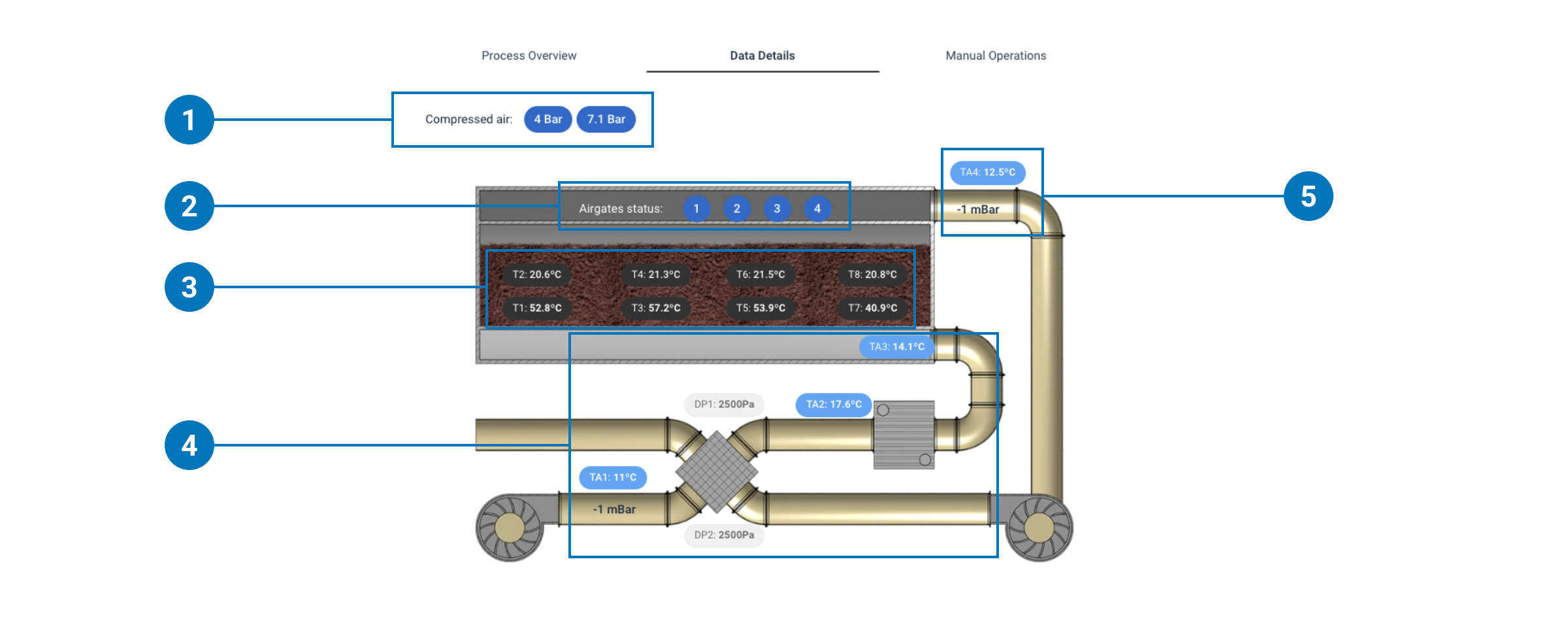
- Compressed Air: Shows pressure values of the compressed air. Depending on the BioDryer model, this could be displayed in Bar or as a binary 0 or 1, indicating whether the correct pressure is present.
- AirGates Status: Four round labels indicate the status of each air gate; blue signifies open, gray signifies closed.
- Temperature Readings: Displays eight temperature readings from corresponding locations inside the BioDryer.
- Air-System Inlet Temperature and Pressure: A P&ID-style diagram indicating all temperature and pressure readings for the air system's inlet.
- Air-System Outlet Temperature and Pressure: Similar to the inlet, this P&ID-style diagram shows temperature and pressure readings for the air system's outlet.
Manual Operations Tab
The Manual Operations tab is essential for when an operator needs to carry out manual tasks for maintenance or component checks. This interface provides controls for the following functions:
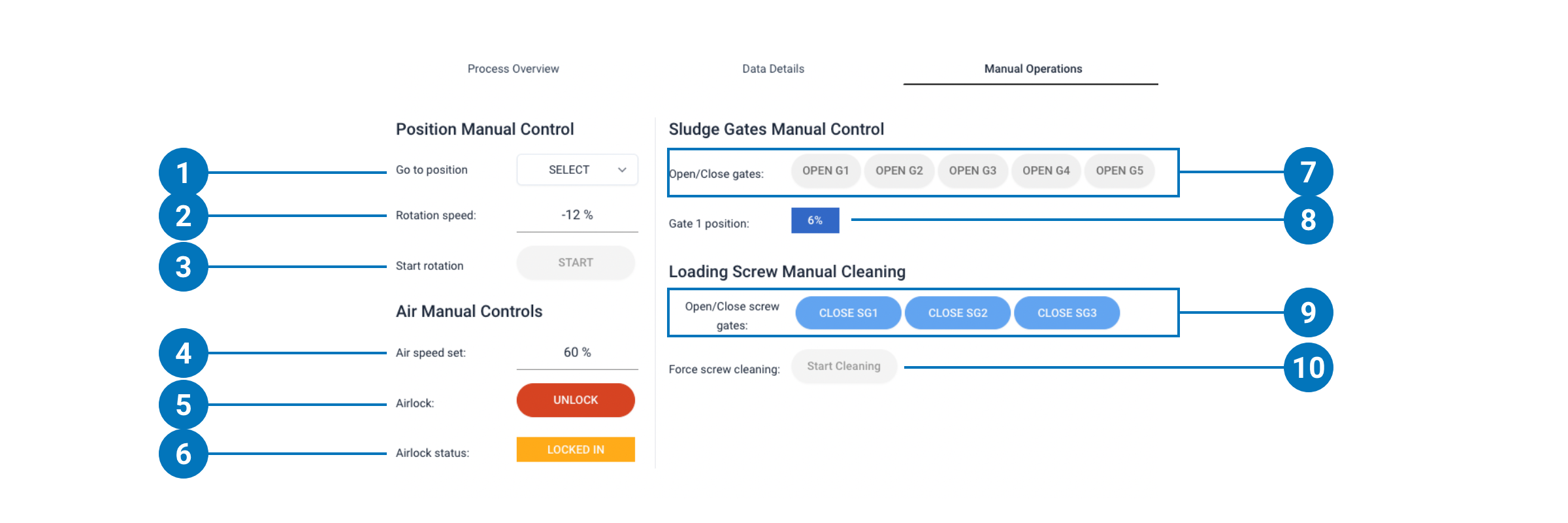
- Go to Position: A dropdown menu that, when the BioDryer is able to rotate, offers three options—air, load, or unload position—to move the BioDryer to the selected location.
- Rotation Speed: Displays the current percentage of rotation speed, adjustable for manual control if necessary.
- Start Rotation: This button initiates a manual rotation at the speed set above—recommended to keep it under 50%.
- Air Speed Set: Indicates the blower speed percentage; setting this above 10% will start air flow into the BioDryer, given it's in the air position and error-free.
- Airlock: Toggle this in Manual-MODE when the BioDryer is in the air position to engage or disengage the air inlet's airlock system.
- Airlock Status: Indicates whether the airlock system is engaged; it must be disengaged for rotation.
- Open/Close Gates: These controls open or close a sludge gate on the BioDryer's body. This is only operable in Manual-MODE with the gates facing up to prevent spillage.
- Gate Position Indicator: Shows the opening percentage for each sludge gate; the number displayed varies by BioDryer model.
- Open/Close Screw Gates: Operate these buttons to open or close the screw conveyor gates in Manual-MODE.
- Start Cleaning: Activates the screw conveyor cleaning process in Manual-MODE when in the load position to clear any remaining biosolids.
Each manual operation is designed to give operators precise control over the BioDryer's functions outside of automatic processes.